Harmonia Shortcuts
Active · v1.0.0
Why Harmonia Shortcuts?
Every VS Code extension can add keyboard shortcuts silently. You install a formatter, a linter, a Git tool - and suddenly your keybindings are full of shortcuts you never chose. Some override your own. Some conflict with each other. And VS Code gives you no way to review what changed.
Harmonia Shortcuts was born from a simple need: see every shortcut that extensions added, and decide what stays.
What it solves
- Invisible shortcuts - Extensions add keybindings you never asked for. Harmonia surfaces them all.
- Silent conflicts - Two extensions claim the same key. Harmonia shows you the collision and lets you resolve it.
- Lost control - Your muscle memory breaks because something changed. Harmonia puts you back in charge.
Harmonia only asks you to decide about shortcuts you never explicitly chose. Your custom keybindings are always protected.
How it works
The audit panel organizes your keybindings into clear sections:
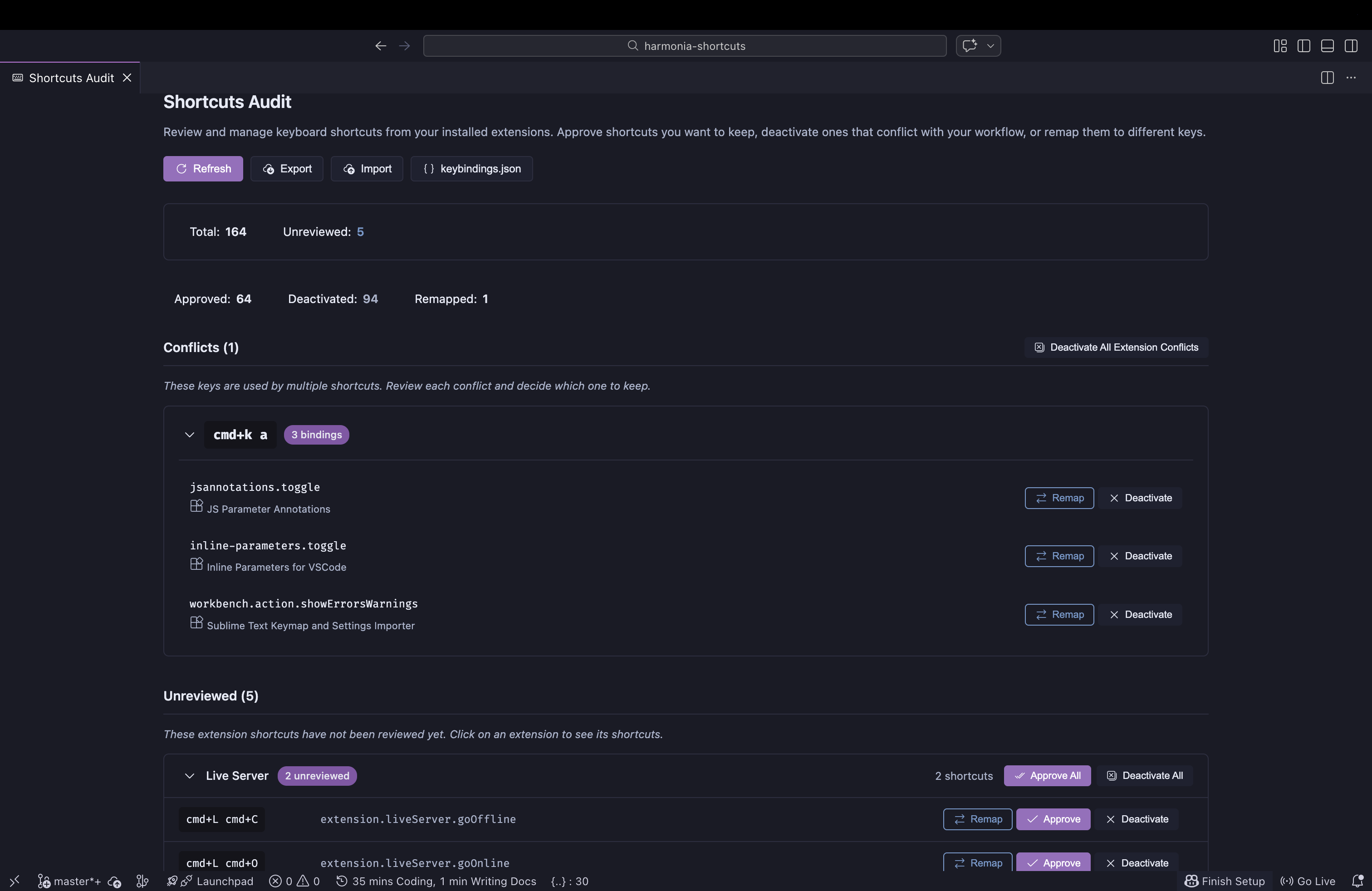
- Conflicts - Keys used by multiple shortcuts. Review each conflict and decide which binding to keep.
- Unreviewed - Extension shortcuts waiting for your decision, grouped by extension.
- Reviewed - Shortcuts you’ve already approved, deactivated, or remapped, with options to undo any decision.
- User Shortcuts - Your own keybindings, shown read-only for reference.
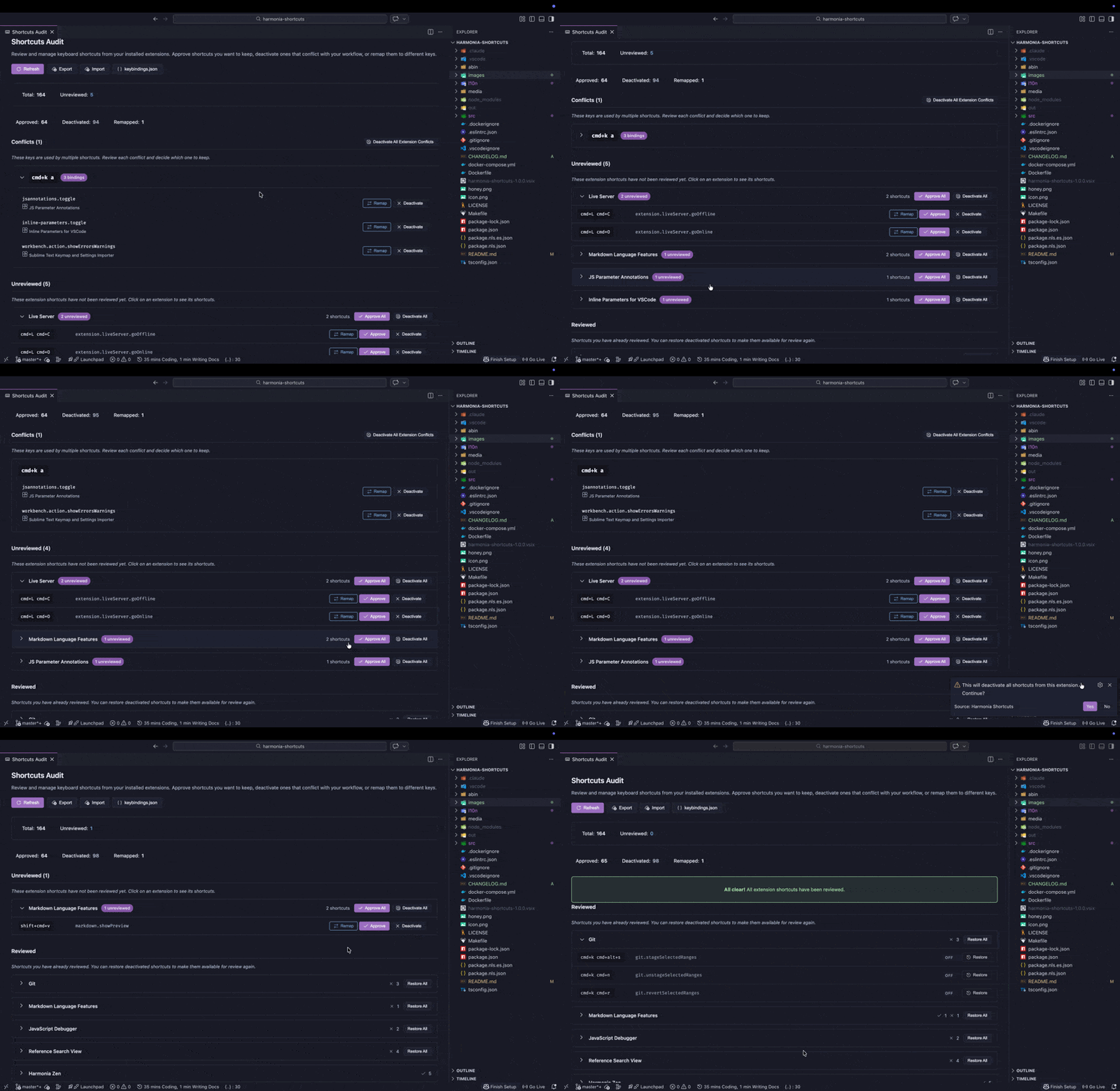
For each extension shortcut you can:
| Action | What it does |
|---|---|
| Approve | Keep the shortcut active as defined by the extension |
| Deactivate | Disable it via a standard negation entry in keybindings.json |
| Remap | Deactivate the original key and create a new binding on a key you choose |
| Skip | Defer the decision for later |
Batch actions let you approve or deactivate all shortcuts from an extension at once.
Key features
- Conflict detection - Context-aware analysis that considers
whenclauses, so it only flags conflicts that can actually collide. - Interactive remap - Captures key combinations directly from your keyboard, including chords.
- New shortcut detection - When extensions update, Harmonia notifies you about new keybindings so nothing slips through.
- Import / Export - Export your governance decisions and import them on another machine or profile.
- No automation - Harmonia never decides for you. Inaction defaults to safety.
Privacy
- No data collection or telemetry.
- No external communication.
- All state stored locally in VS Code.
- Changes written to
keybindings.jsonusing standard VS Code mechanisms. - Open source (MIT license).
Installation
VS Code
- Open Extensions and search for “Harmonia Shortcuts” (publisher: AgusRdz).
- Install and run command:
Harmonia Shortcuts: Start Audit. - Review your extension shortcuts and decide what stays.
Get Harmonia Shortcuts
Demo
The Story Behind It
Curious about why I built this? 📝 Read the full story: The Life Has No Shortcuts. VS Code Has Too Many.

Dedicated to Honey, who was there for every late night and early morning - listening to ideas, keeping me company through every line of code. The best coding partner I could have asked for.